How to prevent OLED burn-in on a Mac
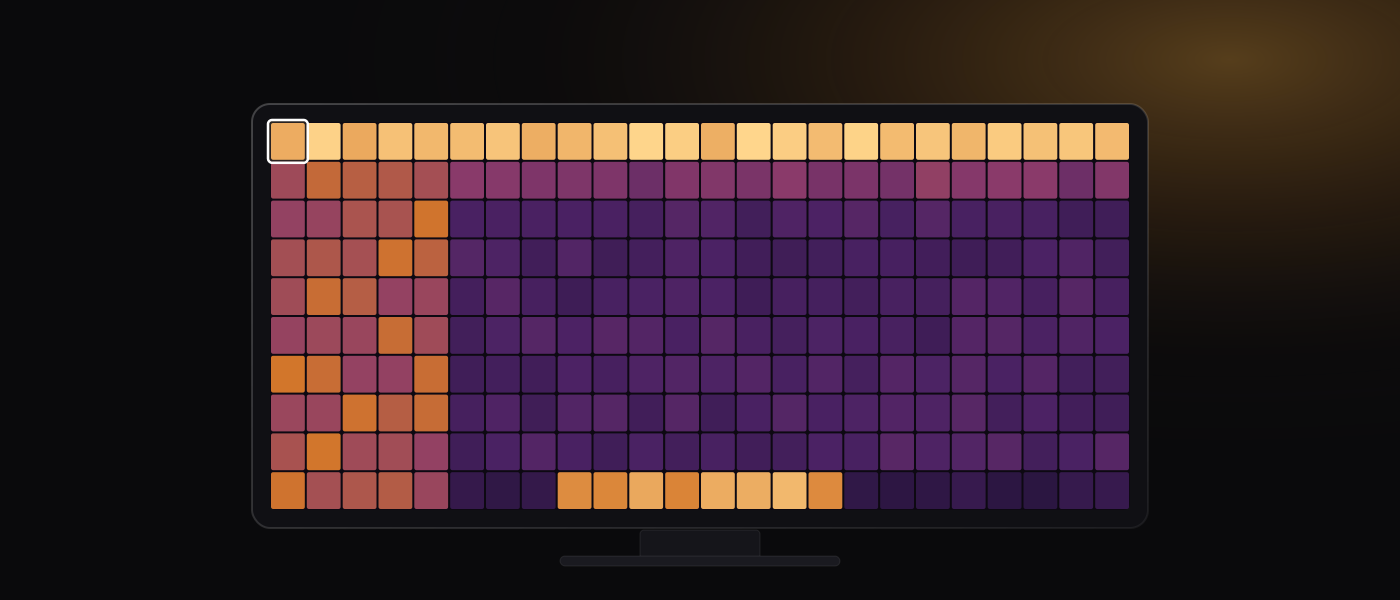
Burn-in on an OLED can be slowed a great deal but never prevented: the pixels make their own light, and lighting them uses them up. What decides how fast is how long bright, unchanging content sits in one place, and a Mac desktop holds still in a way a television never does. The same menu bar, the same Dock, the same window chrome, in the same pixels, for hours at a time, day after day.
What actually wears
Every pixel on an OLED is its own light source, and it fades as it is driven. Brighter and longer means more fading. If the whole panel faded at the same rate you would never notice: even wear is invisible wear. What people call burn-in is uneven wear, and it takes the shape of whatever sat still while the rest of the picture moved.
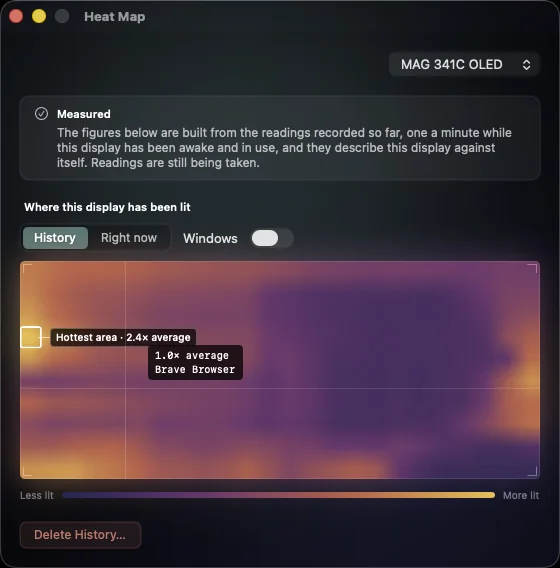
On a Mac, that list is short and predictable:
- The menu bar, and the Dock if it is always shown: both in the same pixels whenever the desktop is visible.
- Window title bars and toolbars, which hold their position for as long as the window is open.
- A sidebar in Finder or Mail, and the strip of chrome at the top of a browser: tab strip, address bar, bookmarks.
- Any app parked at the same size and place all day: a chat window, a calendar, a dashboard.
A dark desktop with content that moves still wears the panel, but it wears it evenly, and evenly is the goal. Nobody returns a monitor for being uniformly a little dimmer than it used to be.
Does the Mac menu bar cause OLED burn-in?
More than anything else on the desktop, yes. It never moves, it is on screen whenever a window is not full screen, and on the light appearance it is close to white from edge to edge. That is the shape of the wear a Mac leaves: a strip along the top, with the clock and the status icons as its brightest points. The two settings that matter most for it are in the next section, hiding it automatically and switching to the dark appearance, and both are one switch each.
What macOS already offers
These are ordinary System Settings panes, chosen for what they do to a panel. Labels are as macOS 26 spells them.
Hide the menu bar. System Settings, Control Center, "Automatically hide and show the menu bar". The options are "Always", "On Desktop Only", "In Full Screen Only" and "Never"; "Always" is the one that keeps the strip clear everywhere. The same control also appears in Desktop & Dock.
Hide the Dock. System Settings, Desktop & Dock, "Automatically hide and show the Dock".
Turn the display off sooner. System Settings, Lock Screen, "Turn display off on power adapter when inactive" and "Turn display off on battery when inactive" (a desktop Mac shows one setting, "Turn display off when inactive"). For a panel that is on all day, shorter is better: a panel that is off is accumulating no wear at all, so this is the setting that buys idle time back.
Pick the screen saver carefully. System Settings, Lock Screen, "Start Screen Saver when inactive". A screen saver only helps if it is dark and it moves. A bright photo slideshow is just a series of static bright fields.
Use Dark Mode. System Settings, Appearance, "Dark". Window backgrounds, sidebars and sheets go from near-white to near-black, and on an OLED near-black is pixels that are barely lit.
Give it a dark wallpaper. System Settings, Wallpaper has a "Colors" section, which is where a plain dark background lives. The desktop is visible more often than people assume, and it never moves.
And a few habits:
- Use full screen for the app you are working in: it takes the menu bar and the Dock out of the picture.
- Do not keep windows in the same position forever; resizing or retiling now and then moves the high-contrast edges around.
- Do not leave a video call's bright toolbar up for hours after the call.
- Turn the monitor off at the end of the day rather than leaving it on a lock screen.
What the monitor does on its own
Most OLED monitors ship with their own protections, in their own on-screen menu. They are worth finding: they are the only layer that can run the panel's own maintenance, below anything the Mac sends down the cable. The names vary by maker (look for "OLED Care", "Panel Care", "Pixel Refresh", "Panel Refresh" or something similar), but the features fall into three kinds:
- Pixel shift. The monitor moves the whole image a few pixels every so often, so a static edge does not sit on exactly the same pixels all day. Usually adjustable in speed, and rarely worth turning off.
- Static-content dimming. The monitor watches for a picture, or a region of it, that has not changed for a while and lowers its brightness until the picture moves again. Some panels aim this at specific shapes: a logo, a taskbar strip, hard vertical edges. How patient it is and how far it dims are usually adjustable, and on some panels these detections switch off while the monitor is receiving variable-refresh-rate content.
- The panel's own maintenance cycle. After a set number of hours of use, the monitor runs a compensation routine of its own that evens out the wear it can correct. It takes a few minutes, it runs when the monitor decides rather than on demand, most often after the display goes idle or is switched off at the monitor, and it should not be interrupted by cutting the power.
Whatever it is called, leave the maintenance cycle enabled and let it finish once it starts. It belongs to the monitor, not to the Mac: macOS has no setting for it, and the way to let it happen is to leave the display idle or switched off long enough.
Where software fills the gap
The monitor's firmware is working blind: it sees a video signal and nothing else. It cannot tell whether you are at the desk, whether the Mac is locked, which display you are actually looking at, or which parts of the picture have not changed since this morning. The Mac knows all of that, and that is the half software can do:
- Dim the display after a few idle minutes, and while the screen is locked.
- Turn it black after longer, so an unattended desk is not lighting pixels.
- Dim the display you are not working on, which on a two-monitor desk is most of the day for one of them.
- Ease down areas that stay bright and unchanged while you work.
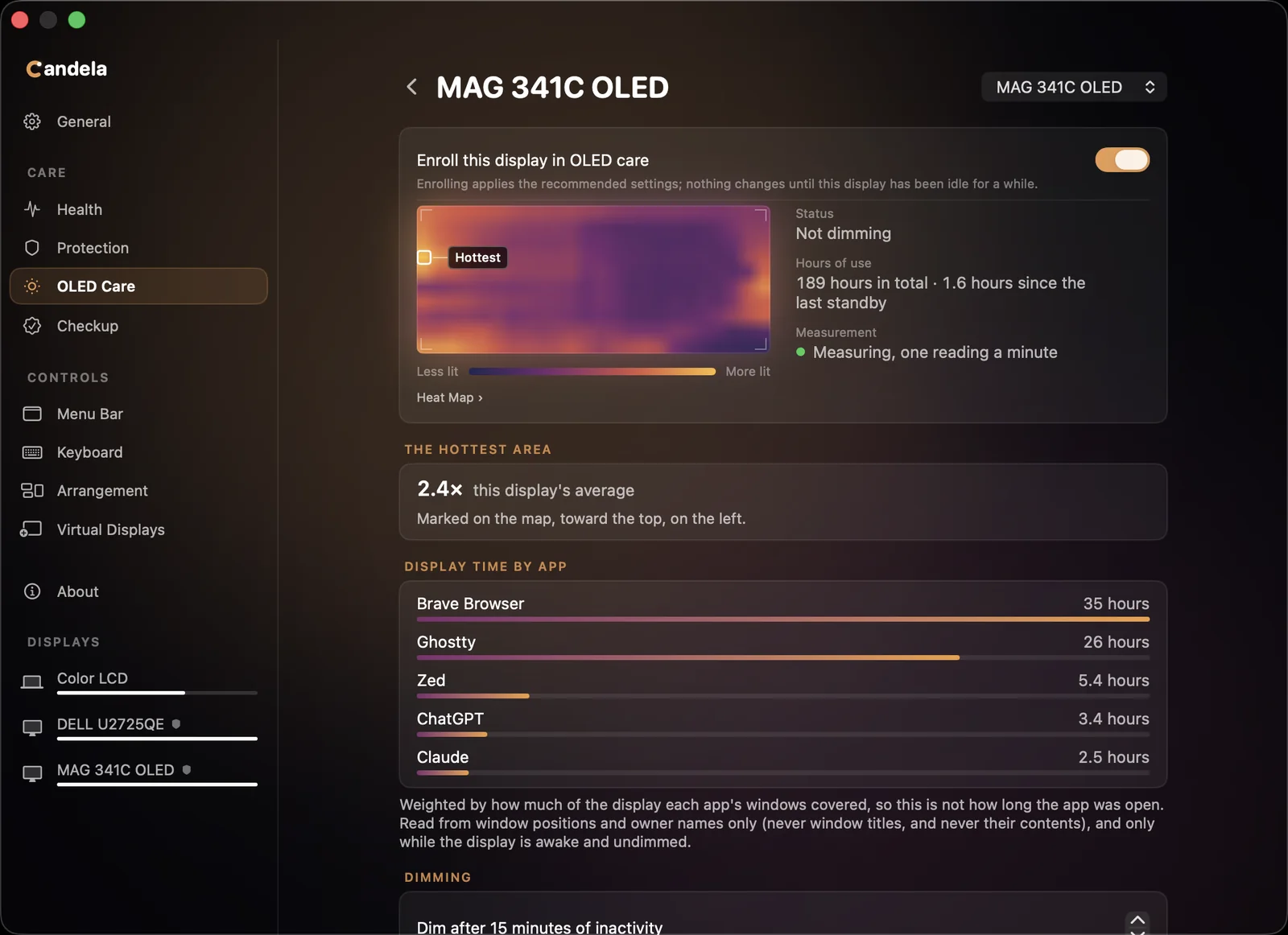
- Keep a record of where the panel has actually been lit, so the pattern of wear is something you can look at rather than something you find out about later.
Candela is a free, open-source Mac app that does each of these. Its dimming is a dark overlay drawn over the display: the monitor's own brightness setting is never touched, and any key or click brings the picture straight back. Enrolling a display applies the recommended settings, which are dim to 50% after 5 idle minutes, dim while the screen is locked, and count hours of use. One setting is deliberately not in that set: automatic dimming of static regions is off by default and requires both measurement switches on the Health pane, because it is the only one that changes the screen while you are looking at it.
The record behind all of it stays on the Mac. Measurement reduces the screen to a coarse grid of mean brightness, and no image is stored; it needs Screen Recording, which is optional. Without that permission the record is which app held which region of the display and for how long, taken from window geometry rather than from the picture. The full how-to is the OLED care page in the app's documentation.
What none of this does
None of it makes the wear zero. A panel that is on is aging; everything above slows and evens out something that still happens.
No app runs the panel's maintenance cycle for you either: that belongs to the monitor, and all you can do from the Mac is leave the display alone long enough for it to run.
How bright you run the panel is the largest lever you hold, and the one people give away first. Run it at the lowest level that is comfortable for the room you are in, and turn the room lights down instead of turning the panel up. HDR is the same tradeoff made deliberately: HDR content is bright because it is supposed to be, and that brightness has the same cost as any other.
Wear is also cumulative, which is the unglamorous part. What you do in the first year counts as much as anything you turn on later.
'%20stroke-width='126'%20stroke-linecap='round'/%3e%3ccircle%20cx='685.6'%20cy='305.2'%20r='165'%20fill='url(%23tip6)'/%3e%3ccircle%20cx='685.6'%20cy='305.2'%20r='56'%20fill='%23FFFDF4'/%3e%3c/svg%3e) Candela
Candela
The display software Apple forgot to ship.
- Panel health
- Burn-in protection
- Monitor checkup
- Every control