How to control an external monitor's brightness from a Mac
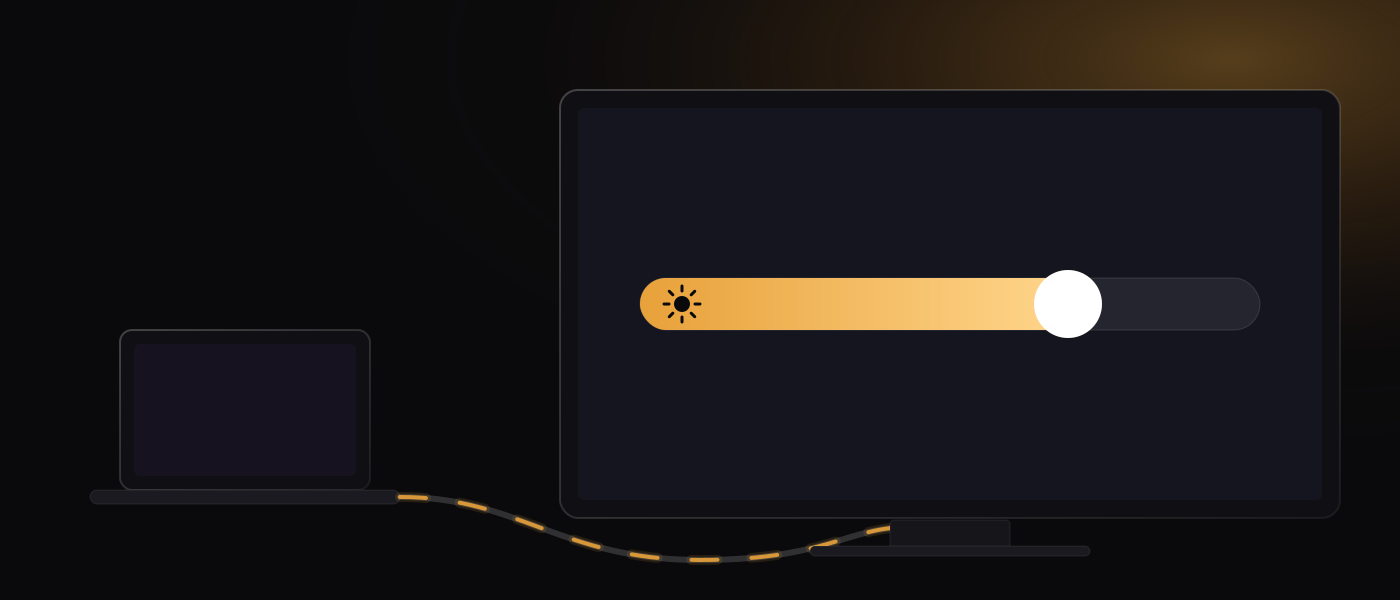
macOS only talks brightness to displays that speak Apple's own protocol, so on every other monitor the slider is missing not because the monitor cannot be controlled, but because nothing in the system ever asks it. The command that would do it is already sitting unused on the cable. So the useful question is not only how to get a slider back. It is how to know what the monitor actually did when you moved it, because monitors do not always do what they are told, and a few ordinary desk setups swallow the command without a word.
Why there is no slider
macOS drives brightness itself on a Mac's built-in screen and on external displays that speak Apple's protocol. In practice that is Apple's Studio Display and Pro Display XDR, and the LG UltraFine line built for Macs. Plug one of those in and a brightness slider appears in System Settings under Displays, and the brightness keys on the keyboard work the way they do on a laptop.
Plug in anything else, which is most monitors, and in ordinary use macOS offers no brightness control of its own for that panel: no slider under Displays, and the brightness keys do nothing for it. HDR is the one exception, and it is covered below. The monitor is not defective and the cable is not wrong. macOS just does not send the standard command the rest of the industry settled on, so as far as the system is concerned that display has no brightness worth showing you.
What DDC/CI is
The standard is DDC/CI, from VESA. It is a small command channel carried inside an HDMI, DisplayPort or USB-C connection alongside the picture, and over it a computer can set a handful of the monitor's own values: brightness (VCP code 0x10), contrast (0x12) and, on many monitors, volume (0x62). These are the same values the monitor's on-screen menu changes. An app using DDC/CI is not dimming the picture in software. It is pressing the monitor's own buttons from the Mac, so what moves is the monitor's real brightness setting, the one its own menu shows.
Worth checking before anything else: many monitors have a DDC/CI switch of their own, and on some it ships turned off. It often sits somewhere unglamorous in the on-screen menu, under a heading along the lines of Others, System or Setup. The wording varies by manufacturer, so hunt for the letters DDC rather than for a particular menu name.
What stops it working
Three behaviours explain most of the reports where DDC/CI is present in principle and unhelpful in practice. What they share is that they fail quietly, and that what you believe about the display stops matching what the display is doing. A command that never arrives, a register that will not take it, and a value nothing can read back all leave you with a number on screen that nothing is checking.
The cable path. Some docks and adapters do not pass the channel through. A monitor that answers on a direct cable can go silent behind a hub while the picture stays perfect, because the picture and the command channel are separate things and only one of them is being carried. Adapters that render the picture on the Mac and send it as data (DisplayLink and similar) generally cannot carry it at all. If the controls stopped working when a dock joined the desk, plug the monitor straight into the Mac for a minute. That one test separates the monitor from everything sitting between it and the Mac.
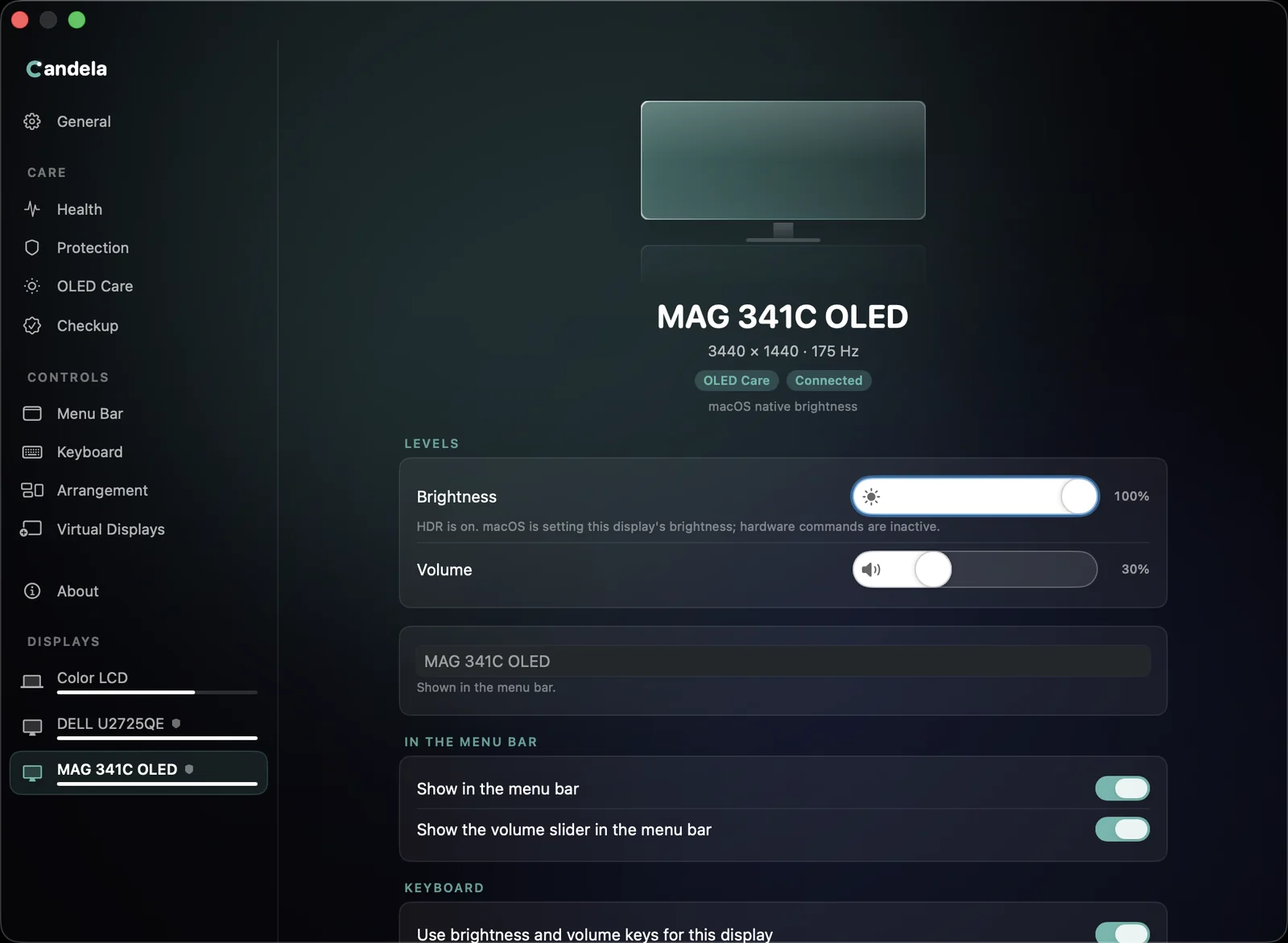
HDR. While a display is in HDR mode, its DDC/CI brightness register is locked: the command goes out over the cable and the value does not change. This is measured behaviour on our own test displays; the app names the state in its own diagnostics rather than reporting the display as broken. macOS may still offer a brightness slider of its own for a display in that state, and where it does not, the monitor's own buttons still work. What is gone until you leave HDR mode is the command over the cable, and leaving HDR mode brings it back. It is worth knowing because it looks exactly like a broken app: everything worked yesterday, HDR got switched on under Displays, and now an app's slider moves and the picture does not.
Write-only monitors. Some monitors accept every command and answer every read with zeros. They can still be driven. Brightness moves, contrast moves, the panel does what it is told. But nothing can be read back, so an app knows only the last value it sent, never the value the monitor is on. The honest response is to say so, which is why Candela labels such a number as last written, never measured, rather than presenting it as something it read. If your monitor is one of these, treat any brightness number an app shows you as its own memory, and expect that memory to be wrong the moment somebody uses the buttons on the monitor.
Your options
The monitor's own buttons. They always work. No software, no permissions, no cable questions. Nobody enjoys the joystick hidden behind the bezel, but it is the ground truth for everything above: if brightness changes there and refuses to change from the Mac, the problem is on the Mac's side of the cable.
Software dimming. A dark overlay drawn over the picture, or a gamma change, darkens what you see without changing the display's own brightness setting. It works on any display, including one that ignores DDC/CI completely, and it can go below the monitor's own minimum, which is the difference between usable and glaring in a dark room on a panel with a high hardware floor. On a backlit panel the cost is real: the picture loses contrast, and the backlight is still running as hard as before.
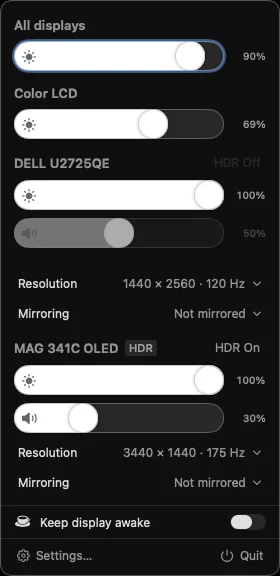
A DDC/CI app. Candela drives the controls the monitor already accepts (brightness, contrast and volume for external displays) from the menu bar, the keyboard's media keys and an on-screen HUD, and adds software dimming below the hardware floor and a toggle for HDR. It also gives each display a Diagnostics page saying which path that display's brightness is actually taking (macOS's own native control, hardware commands over the cable, software dimming, or a combination) and, for anything unavailable, the reason it is unavailable. How that page reads.
Making the keyboard's brightness keys work
macOS handles the brightness keys itself for the displays it controls. For any other display, something has to watch those key presses and turn them into a command on the cable, and on macOS watching key presses means the Accessibility permission. That is the whole of it in this case. Any app that asks for the permission should be able to tell you plainly what it does with it. If it cannot, that is a fair reason to keep looking.
'%20stroke-width='126'%20stroke-linecap='round'/%3e%3ccircle%20cx='685.6'%20cy='305.2'%20r='165'%20fill='url(%23tip6)'/%3e%3ccircle%20cx='685.6'%20cy='305.2'%20r='56'%20fill='%23FFFDF4'/%3e%3c/svg%3e) Candela
Candela
The display software Apple forgot to ship.
- Panel health
- Burn-in protection
- Monitor checkup
- Every control